Appearance
Frequently Asked Questions (FAQ)
Preview Playback Lag + Audio and Video Out of Sync
NodeVideo's core function is high-quality compositing and rendering, not real-time smooth editing preview. Therefore:
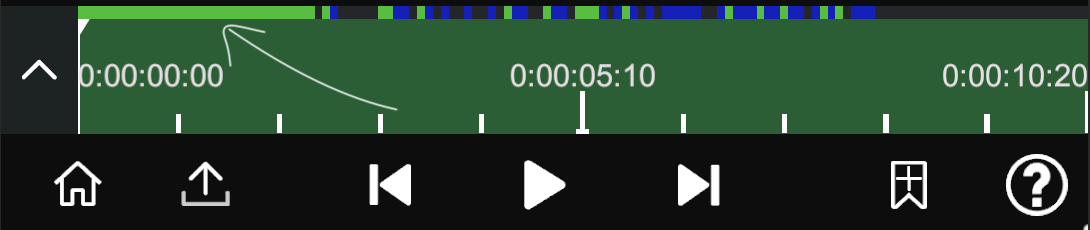
- On first playback, the app needs to render frame-by-frame and generate cache (the progress bar gradually turns green)
- The green portion of the progress bar usually becomes very smooth on second and subsequent playbacks, with perfect audio-video sync
💡 Pro Tip:
- If you experience audio and video out of sync, frame drops, or lag during preview, it's almost certainly because the rendering cache is not complete yet
- Any modification (adjusting keyframes, adding effects, moving assets, etc.) will invalidate the cache and require re-rendering
- After rendering is complete, the audio and video of the exported video will definitely be in sync. Preview issues will not affect final output
How to Improve Preview Smoothness? (Reduce Lag, Improve Editing Efficiency)
- Avoid directly importing/using original materials exceeding 1080p (1920×1080) for editing
How to check video resolution/bitrate → How to View Video Information
- Change
Project Settings(appears after clicking the root node):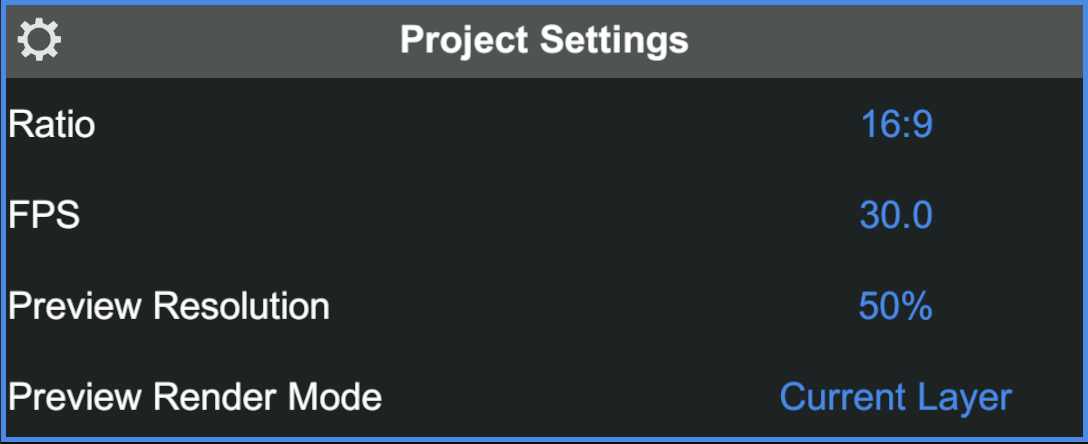
- It's recommended to set the
FPSto 30fps or below during preview (even if the material is 60fps) for noticeably improved smoothness. Switch back to 60fps or higher when doing final export/rendering. - Set the
Preview Resolutionin project settings to 50% or lower. This is one of the most immediate ways to improve smoothness in any editing software and does not affect final export quality.
- It's recommended to set the
- Try to minimize high-performance-consuming features/effects
- Due to mobile performance limitations, some features may significantly reduce preview speed
App Crashes
With smaller phone memory (RAM), crashes or freezes are likely to occur if the project is complex (many layers, high-resolution assets, complex effects). We are continuously optimizing memory usage, but mobile devices are still limited by hardware. Try the following in priority order:
- Prioritize reducing resource consumption
- Try to reduce the number of layers
- Disable or reduce the use of high-performance-consuming features
- Reduce export/preview pressure
- Lower the export resolution to 720P (1280×720) or lower (like 480P)
- Set FPS to 30 or below during preview (can still be set to 60 for export)
- Handle high-resolution assets
- If the project contains 4K/ultra-clear video, try replacing it with a 1080P (1920×1080) or lower resolution version (you can transcode and compress with other tools in advance)
Blurry Video After Import
Preview blurry? Don't worry! The project defaults to 50% preview resolution (or 720P upper limit) purely for smoothness -- the final export is unaffected. Check the quality by viewing the local file after export to confirm the actual quality.
You can also set the preview quality to 100% in Project Settings under the Root Layer:
⚠️ Important Reminder: NodeVideo will not actively lose the original video quality! It uses a near-lossless processing workflow. The final export quality mainly depends on your assets + export settings.
Cannot Import Assets (Video/Image/.zip Project)
Android System - Cannot Import Assets
NodeVideo does not actively request "all files access permission" (MANAGE_EXTERNAL_STORAGE), so it cannot directly read private directories of other apps (such as internal folders of WhatsApp, WeChat, TikTok, etc.).
Common Causes and Solutions:
- Asset is located in another app's private directory (such as /Android/data/com.tencent.mobileqq/...)
- Use your phone's built-in "File Manager" or a third-party file manager (such as ES File Explorer, Xiaomi File Manager) to find the target video/image.
- Copy or move the file to a public directory, such as:
- DCIM/Camera
- Pictures
- Movies
- Download
- Return to NodeVideo → Click + Import → You should now be able to see and import in "Media Files" or "Photos".
- System background permission restrictions → Cannot display or directly crash
When selecting from Photos, the app briefly switches to the system photo picker, and some phones may kill background processes. You need to manually enable
background popuppermission inprivacy settings
- 💡 Pro Tip
It's recommended to develop a habit -- place all downloaded assets/saved videos in the "Download" or "Movies" folder to avoid most Android import issues.
If the above methods don't work, or you encounter a very special file format/encoding issue, welcome to send sample files to contact@nodevideo.com, and we will help troubleshoot.
iOS System - Imported Video Shows Black Screen
This is an occasional iOS system issue (possibly related to system cache, photo permissions, or video decoding) and is not a bug unique to NodeVideo.
Troubleshooting Steps (Try in Order):
- Restart your device -- In most cases, restarting your iPhone/iPad will restore normal function.
- Check photo permissions -- Make sure NodeVideo has full access to "Photos" (Settings → Privacy and Security → Photos).
- Still black screen -- Please send the problematic video (preferably the smallest reproducible sample) to the official email: contact@nodevideo.com. It's recommended to attach: device model + iOS version + video format/duration/source + screenshot/screen recording for quick resolution.
How to Export 4K Video
NodeVideo's project settings don't have a direct 4K preset option, but you can achieve 4K (3840×2160) export through custom aspect ratio.
- Enter
Project Settings(appears after clicking the root node) - Change the
Ratiooption to custom - Manually set in the
Resolutioninput box:
- Width: 3840
- Height: 2160
- (That is, 3840×2160, standard 4K UHD resolution, 16:9 aspect ratio)
After that, the project canvas will switch to 4K resolution. When exporting (click the export button), the resolution will follow the project settings by default, so you'll get 4K output.
Important Notes
It's not recommended to use the 4K project throughout on your phone, especially when importing 4K original assets, as it's very likely to cause:
- App crashes
- Extremely sluggish preview
- Export failure or collapse
Device Compatibility Issues
NodeVideo, as a powerful mobile professional video editing app, has high hardware requirements for certain advanced 3D features (such as 3D camera tracking, puppet tool, 3D lighting/shadows/motion blur, etc.), especially GPU and Vulkan support. Some low-end or mid-range devices (especially some old/low-end models of Redmi Note series) may encounter compatibility issues, causing these features to not work properly, appear gray and unclickable, crash, or not display at all.
Examples of Devices Most Prone to Problems
- Some models of the Redmi Note series (such as Redmi Note 8/9/10 low-end versions, Note 4/5 and other old models)
- Other low-end/mid-range Android phones: equipped with low-power GPUs (such as Mali-G52/G57 low-frequency versions, Adreno 610/612, etc.), memory ≤6GB, old processors (such as Snapdragon 6xx/Helio G series)
How to Improve Exported Video Quality
⚠️ Important Reminder: NodeVideo will not actively lose the original video quality! It uses a near-lossless processing workflow. The final export quality mainly depends on your assets + export settings. Please check and adjust in the following priority order:
- Original asset is the foundation of quality (most critical)
- Using direct originals (videos directly recorded from camera/phone) works best
- If the video you imported has been processed and exported multiple times by other apps, the quality loss is irreversible -- it's recommended to reacquire the original file
- Avoid repeatedly importing-exporting the same asset
- Match resolution and frame rate (avoid resampling loss) Detailed Tutorial
- Prioritize setting the same resolution and FPS (frame rate) as the original asset
- Common misconception: original asset is 720P, but export 1080P -- not only won't it "upgrade" quality, it will actually become blurrier/more noisy due to upsampling
Preview Has Video but No Sound
Please check:
- Phone mute switch / physical mute button
Check if the mute switch on the side of your phone (iPhone has a slider on the side, some Android models have similar physical keys) is in mute position → turn it off.
- Do Not Disturb mode / Mute mode
Is Do Not Disturb mode, meeting mode, or mute mode enabled? (check in notification panel or settings) → turn off or set to allow media sound.
- System volume & media volume
- When adjusting volume, make sure you're adjusting media volume (not ringtone volume).
- Go to Settings → Sound and Vibration → Media Volume and adjust to appropriate level.
- It's recommended to hold the volume + key during preview and max out the media volume to test.
- Other possibilities
- Are you connected to a Bluetooth headset/speaker but no sound output? → disconnect Bluetooth or switch to phone speaker.
Preview Shows Only One Layer / Some Layers Won't Play
Enter project settings → change preview rendering mode to All Layers.
How to Mirror Video
Adjust the scale parameter under transform properties to (-1, 1).